
Pros and Cons: Wacom vs. iPad Pro
Lesson 4 of 7
no file
Welcome Module:
In this lesson, I'll be going over drawing tablets. Please note that having a drawing aid is not essential to being successful in this The Divine Pattern course, simply helpful. I'll be teaching you how to create beautiful artwork with or without a drawing tablet.
The iPad Pro + Apple Pencil:
Since the iPad Pro + Apple Pencil hit the market, illustrators, hand letterers and artists all over have been falling in love with it. One of the most commonly asked questions I get is which tablet to use. Here's my answer!
What size do you recommend?
I always recommend purchasing the largest size you can afford, because when it comes to art, 'screen real estate' is so important.
Wacom vs. iPad Pro
I used a Wacom for years, and now most often use the iPad. Let me give you my pros and cons of each:
Pros of the Wacom:
+ It has a very nice feel to the screen, almost like paper when drawing on it.
+ It draws directly into Adobe Illustrator, so there's no exporting/importing, etc.
Cons of the Wacom:
- The pen is bulky, and takes getting used to.
- The actual Wacom is a bit bulky, especially the Cintiq. This is why I recommend the Intuos Pro if you decide to go with a Wacom.
Pros of the iPad Pro + Apple Pencil:
+ It's lightweight, easy to hold and very responsive.
+ You can take it anywhere! It's wireless, so you can work on the couch, on the airplane or right at your desk.
+ It's an iPad, so it's everything! Use it for apps, web surfing, emails, videos and so much more.
+ The Apple Pencil feels amazing. Just like a real pencil.
+ I love the glass feel to the surface, but if you prefer a more paper like texture, you can purchase a screen protector for it that has texture.
+ Since it's an iPad, the software and apps will update as new releases become available which means it won't become outdated as quickly.
+ The amount of apps for artists is never ending!
Cons of the iPad Pro + Apple Pencil:
- The iPad holds a charge well, but once it's dead it takes a while for the charge to bring it back to life (5-10 mins maybe?). They have fixed this issue with the latest iPad release.
- There's a bit of a learning curve with each app, and you'll have to figure out a workflow that works best for you.
What Apps do you use?
APPS:
Psst! It's worth noting here that Adobe has announced that they'll be releasing a version of Illustrator for the iPad in 2020. You can read more about it here!
+ Procreate
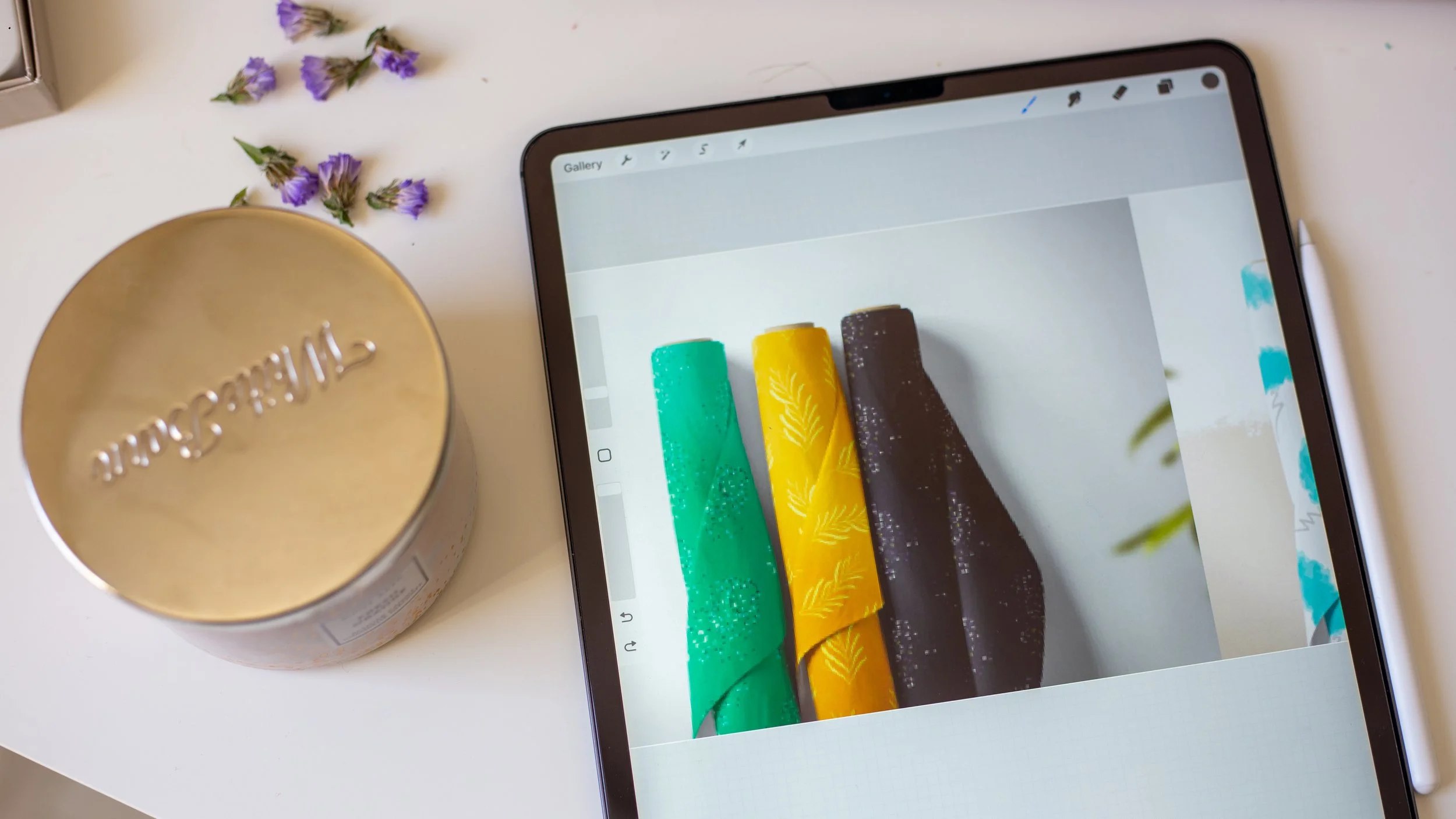
This is such a powerful app! It's basically Photoshop on your iPad, but easier to learn (in my opinion). You can paint, letter, layer, draw, sketch, texture and so much more. Typically to use this app, I take a photo of my pencil sketches (making sure it's not skewed), then 'airdrop' them to the iPad. I'll import one photo at a time, lock it on it's own layer and trace over my lines to perfect them. The only con to using Procreate is that it's not vector based, and you can only export in .PNG, .PDF or .PS. This is somewhat limiting, so I usually export a black and white drawing that I've perfected, then use image trace on it in Illustrator to vectorize it.
+ Adobe Illustrator for the iPad
Adobe also just released Illustrator for the iPad. Illustrator on the iPad is part of Adobe Creative Cloud, so you can design anywhere, work seamlessly across your devices, and keep everything in sync. Bring in images from Photoshop on the iPad and easily access your Creative Cloud Libraries. We'll be covering this app for those of you who have an iPad in an upcoming module, as well.
Great Job! Keep Going!
Your Keyboard Shortcuts Guide
Next Lesson